
Your Cart is Empty
CANADA FREE SHIPPING WITH ORDER MORE THAN 100$ BEFORE TAXES *
CANADA FREE SHIPPING WITH ORDER MORE THAN 100$ BEFORE TAXES *
-
Login
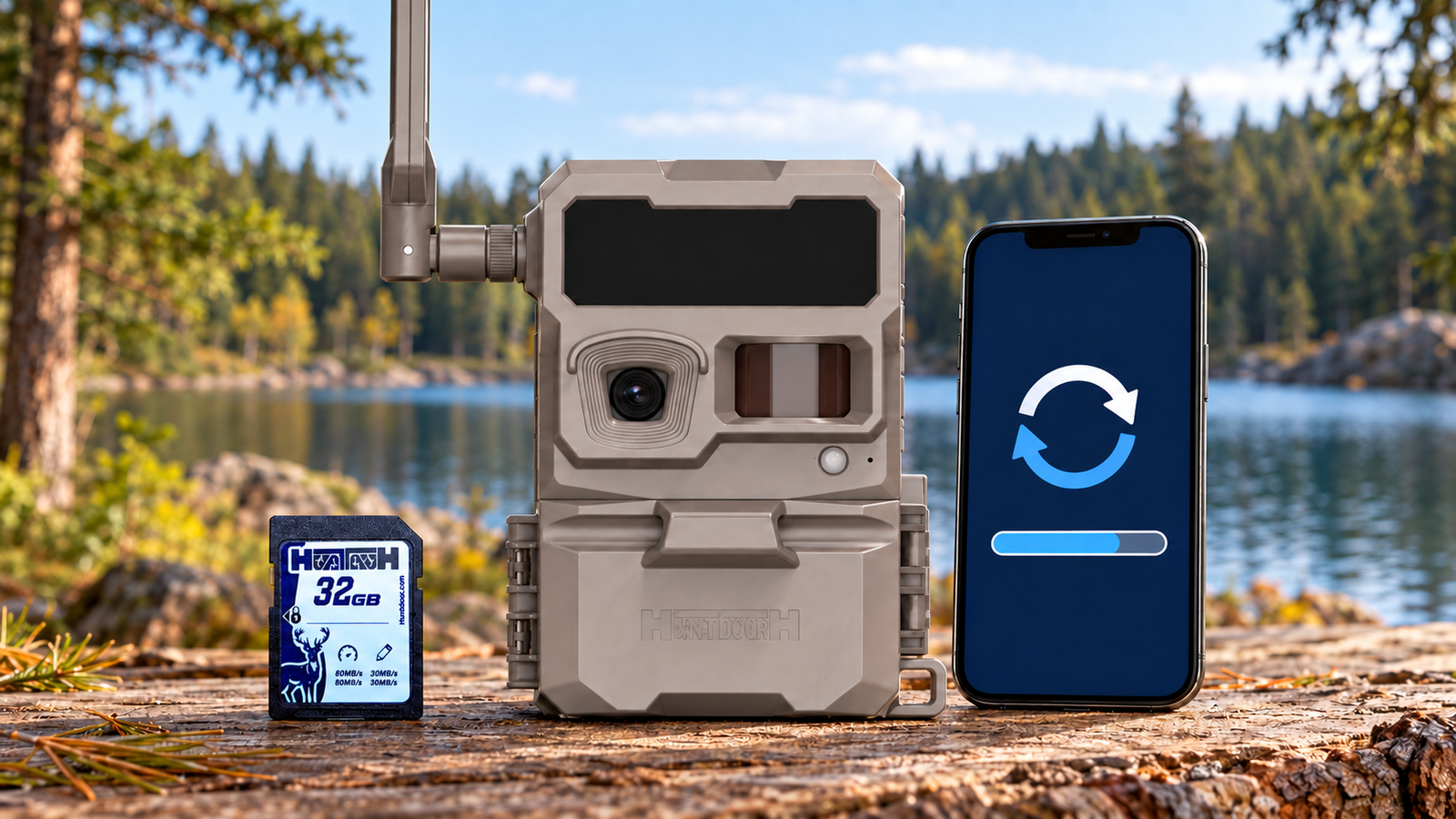

Not sure whether your camera needs an update or where to start? Our interactive guide helps you choose the right procedure for your Huntdoor or Boly camera.
Before downloading a file or removing your memory card, take a moment to identify your model and check the instructions.
Firmware is the software that runs inside your camera. Depending on the release, an update may correct an issue, improve operation or add support for a feature.
Updating your camera’s firmware is different from updating the Huntdoor app on your phone.
Check when an update is offered in the Huntdoor app or when Huntdoor support recommends one for your camera.
If your camera has stopped sending photos, start by checking its power supply, cellular subscription, memory card and connection. A firmware update will not resolve every transmission problem.
If your camera is no longer synchronizing, contact support before attempting a remote update.
For ACCESS and ACCESS-L cameras, open the Huntdoor app, select your camera’s settings and open its status screen. Locate the camera firmware version and make a note of it.
Also check the date of the last synchronization. Information from an older synchronization may not reflect your camera’s current condition.
Recording the version before you begin helps you confirm the update afterward.
Our guide covers three methods for Huntdoor ACCESS and ACCESS-L cameras:
Through the Huntdoor app: request a remote update when the camera meets the conditions shown in the guide and app. The download starts at the next synchronization, regardless of the remote-control mode selected.
With the camera and a memory card: follow the instructions to prepare the card and install the correct files for your model.
With a memory card and USB cable: a last-resort method when appropriate, following the dedicated instructions.
ACCESS and ACCESS-L use different update files. Always select your exact model.
ForBoly cameras, choose Boly on the guide’s opening screen to access the instructions and update request form. Have your model, serial number and a description of the issue ready.
The guide walks you through preparation, installation and checking the installed version.
Before starting, make sure you have sufficient power and follow the requirements for your chosen method. Back up any images you want to keep before formatting a memory card.
Once installation begins, follow the instructions carefully before disconnecting power or removing the card.
Sending an update request does not confirm that installation is complete. Finish the verification steps to confirm the version installed on your camera.
Choose your camera brand and follow the instructions one step at a time. If something does not match what you see, use the support option in the guide before continuing.
Comments will be approved before showing up.
