
Your Cart is Empty
CANADA FREE SHIPPING WITH ORDER MORE THAN 100$ BEFORE TAXES *
CANADA FREE SHIPPING WITH ORDER MORE THAN 100$ BEFORE TAXES *
-
Login
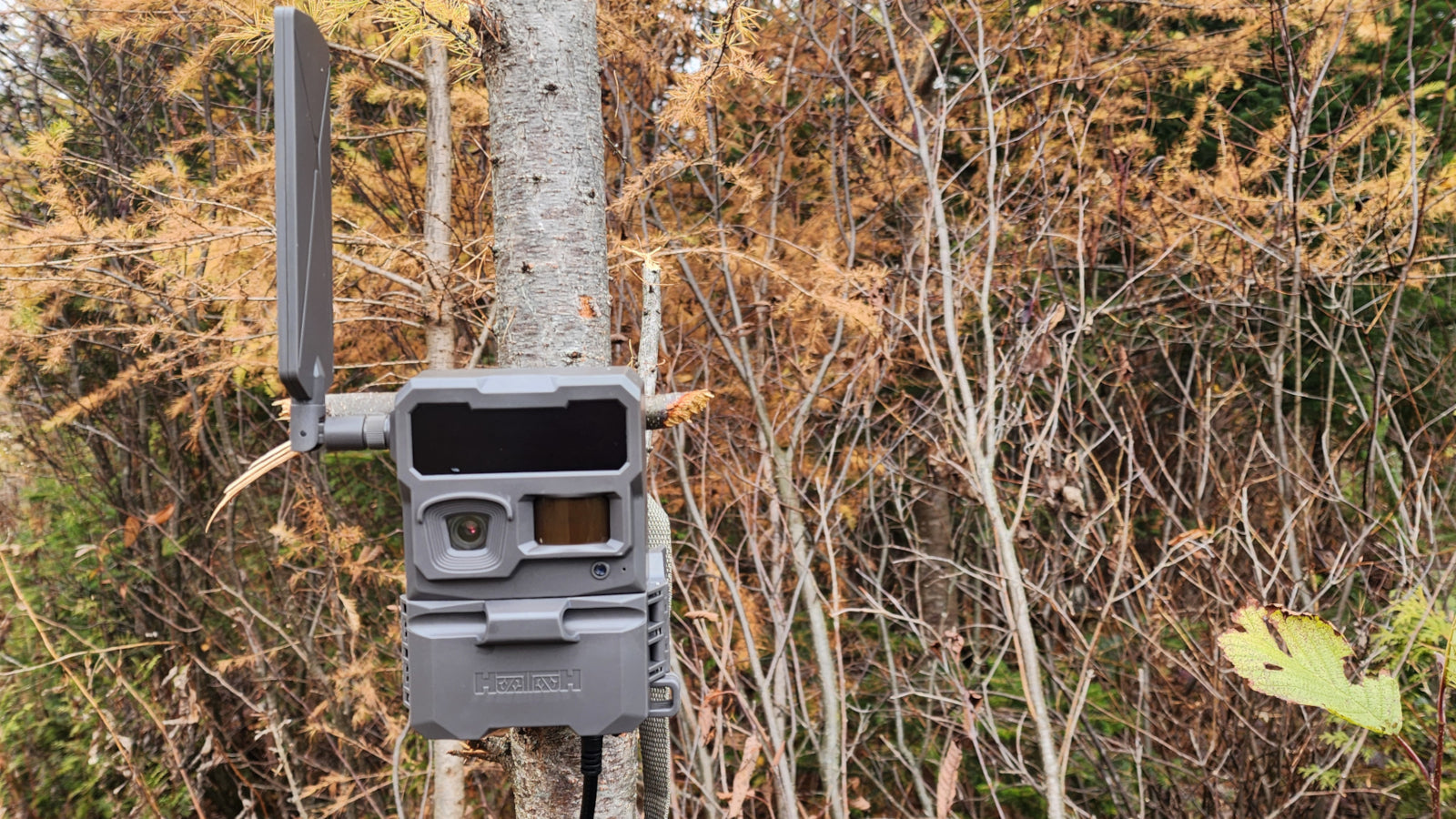

Has your camera stopped sending photos even though it was working fine before? Before heading out to your hunting property, a few checks may help you identify the cause.
An inactive subscription, insufficient power, a faulty memory card, or an unstable cellular connection can interrupt transmission. Here is how to troubleshoot the issue, starting with the checks you can perform remotely.
In the Huntdoor app, select your camera and check its status. Pay particular attention tothe date and time of the last synchronization.
This helps distinguish between two situations:
A battery reading from an older synchronization does not confirm the camera’s current power status.
Receiving notifications but no photos? These may be synchronization notifications. They do not necessarily confirm that a new image has been recorded or transmitted.
ACCESS and ACCESS-L cameras require an active Airasim subscription to use their cellular features.
In yourAirasim portal, check that:
Without an active subscription, the camera can continue recording locally to its SD card, but it cannot transmit images or receive remote commands.
Review the latest battery information in the app. If you need to visit the camera, also check:
Having a solar panel does not guarantee that the battery is sufficiently charged. Shade, snow, or a disconnected cable can affect the power supply.
Use a power source compatible with your camera model.
The SD card is one of the components to check when a camera stops transmitting properly. An incompatible, corrupted, or faulty card can interfere with image recording and transmission.
For Huntdoor ACCESS and ACCESS-L cameras, use afull-size SD card with a maximum capacity of 32 GB, rated Class 10 U3. Avoid microSD cards with adapters.
If the camera is still communicating with the app, you can use the formatting command in its settings.
Formatting erases the contents of the SD card. Back up any images you want to keep first.
If the problem persists, try another compatible card that you know is working properly. Turn off the camera before removing or inserting the card.
A camera that worked at home may have a different connection at its final installation site.
On location, make sure the antenna is securely attached and in good condition. Then check the camera’s network indicators.
If the signal is weak or unstable, try a slightly different location or mounting height. Test image transmission again after each change.
The signal displayed on your phone does not guarantee the signal available to your camera, since the two devices may use different networks.
A lack of new images does not always mean transmission has failed. Also check that:
On location, walk across the monitored area, then check whether an image appears in the app.
The time needed to execute a remote command also depends on the selected control mode. A pending command does not necessarily mean the camera is faulty.
For ACCESS and ACCESS-L models, place the camera inSETUP mode and check the status lights. These can help identify a memory card, network, power, or connection issue.
When the lights indicate normal operation, pressSYNC, then confirm that the image has arrived in the app.
Return the camera to its normal operating mode before leaving the site.
An update may help, but it should not be your first step when a camera has stopped communicating.
Do not start a remote update if the camera is malfunctioning or has not synchronized recently. Sufficient power and a stable connection are required.
Read the instructions for your specific model or contact Huntdoor support before proceeding.
Have the following information ready to help with troubleshooting:
Contact Huntdoor support. We can guide you through remote troubleshooting and determine whether an on-site inspection is needed.
Comments will be approved before showing up.
